

Getting Gitea#
Gitea is an open-source, self-hosted Git service.
Official download page: https://about.gitea.com/products/gitea/
Setup#
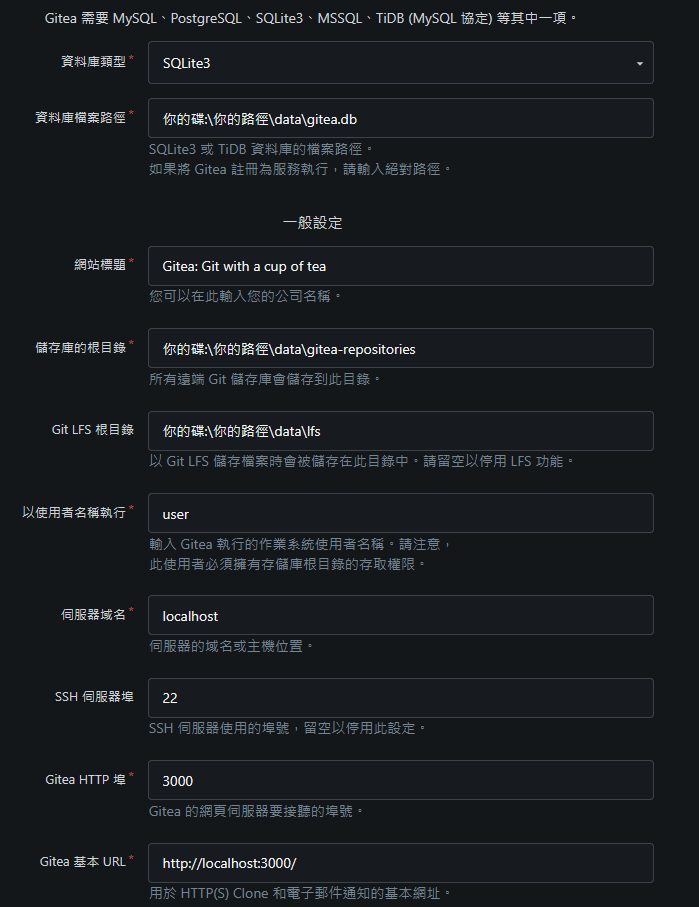
To begin, I recommend using the default settings.
.\custom\conf\app.ini to git, or use the account name of the host running the service when connecting. Otherwise, SSH authentication may not work correctly in this setup.Creating a Client SSH Key#
Generate a key with:
ssh-keygen -t ed25519 -C "[email protected]"You will usually be asked whether to use the default path or specify a different path and filename. Press Enter to accept the default. The output looks roughly like this:
Generating public/private ed25519 key pair.
Enter file in which to save the key (C:\Users\username/.ssh/id_ed25519):
Next, you can set a passphrase to encrypt the key. In this example, I leave it empty:
Enter passphrase (empty for no passphrase):
Enter same passphrase again:
You should then have two files:
C:\Users\username/.ssh/id_ed25519C:\Users\username/.ssh/id_ed25519.pub
Configuring SSH Access#
Open C:\Users\username/.ssh/id_ed25519.pub. It contains a long line similar to:
ssh-ed25519 AAA...Paste it into the location shown below, under your account settings:
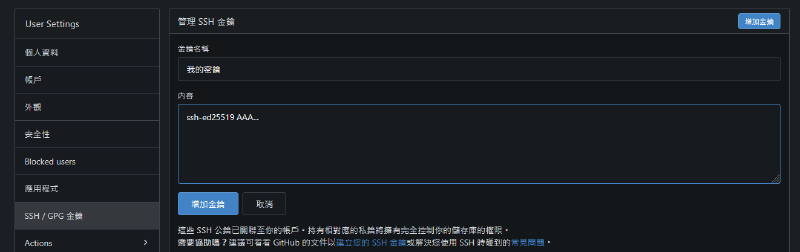
Next, use the temporary token to verify the SSH key:
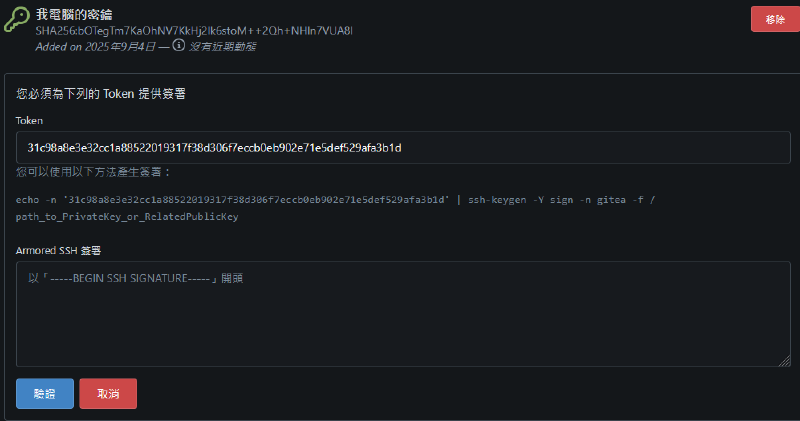
The command is approximately:
echo -n 'the-token' | ssh-keygen -Y sign -n gitea -f C:\Users\username/.ssh/id_ed25519.pubYou will receive output like this:
-----BEGIN SSH SIGNATURE-----
...
-----END SSH SIGNATURE-----
Copy and paste the signature here:
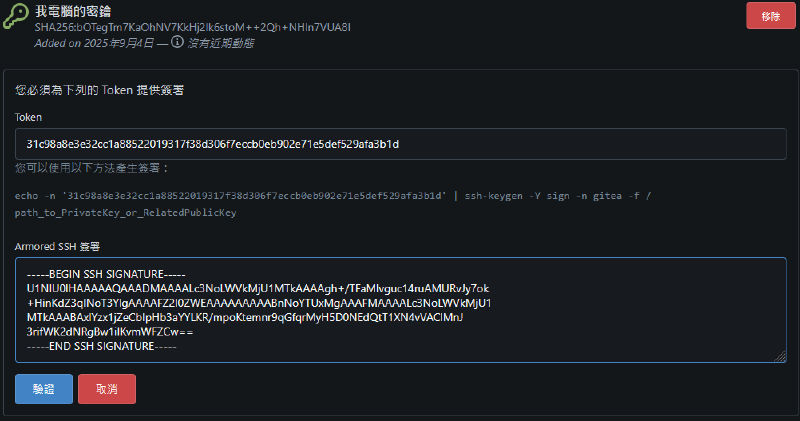
You should now be able to connect to your repository over SSH:

For example:
git clone ssh://gitea-ssh-user@your-domain:your-ssh-port/your-gitea-account/your-repo.gitClosing Thoughts#
This seemed so simple, but I was stuck on it for a long time. The main issue was that Gitea’s SSH user was not necessarily git. You can change it to git if your setup continues to work correctly with that change.
HTTP access is also an option instead of the SSH approach described here, using an appropriate authorization flow such as browser-based authorization.